IPYNB to PDF Converter
Turn your Jupyter Notebook into a PDF worth sharing.
Keep the code or just the results. Preview every page before you download.
- 1Upload notebook
- 2Customize & preview
- 3Download PDF
Upload your notebook
.ipynbFrom notebook to PDF, without the detour.
A clear workflow for assignments, analysis and reports.
Upload your notebook
Bring a saved .ipynb with its outputs. No account or setup required.
Make it fit your work
Keep the code or hide it. Choose your paper size, orientation and spacing.
Preview. Download. Done.
Check the actual pages, then download the same PDF you just reviewed.
Your work deserves a complete story.
Convert saved Notebook content into a document anyone can open.
Readable code
Long lines wrap and flow across pages, keeping your process easy to follow.
Markdown & results
Keep your headings, explanations and saved text outputs together.
Charts & tables
Embedded images scale to the page. Basic tables carry their data along.
Common math
Bring fractions, sums, roots, Greek letters and other common formulas.
Saved static content only. See supported content and export limits
Show your process.
Or get to the point.
Choose the version that fits your reader. Your explanations and saved results stay in both.
For the full picture
Assignments, tutorials and reviews where the code matters.
- Python source included
- Markdown and saved outputs
For the result that matters
Briefings and reports that let the explanation lead.
- Code cells hidden
- Markdown and saved outputs
Study session analysis
Five sessions. One small experiment.
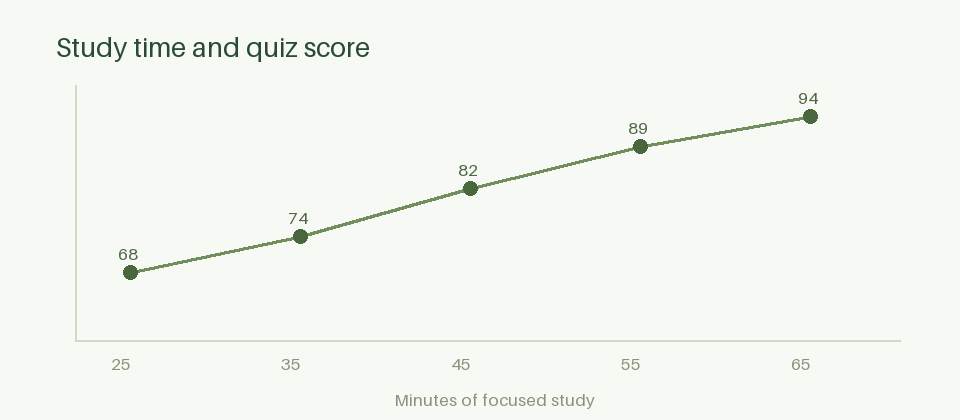
A real notebook.
A real PDF.
Try a complete saved example with Python code, a data table, a chart, formulas and a short Chinese note. Then compare both export modes.
Try the sample notebook Explore the exampleWhat is an IPYNB file?
An .ipynb is the file format used by Jupyter Notebook. It combines code cells, Markdown and saved results in one document. That makes it useful for working through an idea, but your reader may simply need a finished report.
Converting IPYNB to PDF gives you a static document for an assignment, a project review or a research summary. You can preview the printed layout here and share it without asking someone else to install Jupyter.
IPYNB to PDF, explained.
A few answers before your next export.
01How do I convert an IPYNB file to PDF?
Upload one saved .ipynb file, choose Full Notebook or Report Only, and adjust the page layout. Select Generate PDF, review the actual PDF preview, then download. The preview and download use the same file.
02Can I save a Jupyter Notebook as PDF without the code?
Yes. Report Only hides code cells while keeping your Markdown explanations and saved outputs, including supported tables, images and formulas. Full Notebook includes the code too.
03Do I need Jupyter or LaTeX installed?
No installation is needed to use this website. Upload a Notebook you have already saved. If results are missing, you will need to run the relevant cells in your own Jupyter environment and save the file first.
04Does the converter run my Python code?
No. It converts the source, explanations and results already stored in the file. It does not start a Python kernel or execute uploaded code. Non-empty code cells without saved outputs are flagged, including import-only cells.
05Is my Notebook uploaded to a server?
Yes. Your file is sent to our conversion service for this request. The application does not retain Notebook bodies or log their contents. Processing resources are released afterward; see Privacy for the hosting provider and temporary-storage details.
06Which Notebook content is supported?
Markdown, code, saved text output, embedded PNG/JPEG images, basic HTML tables and common math formulas are supported. Interactive widgets need a saved static fallback. Remote images, scripts, SVG and video are not supported.
07How do I fix a wide table or a cropped output?
Start with landscape orientation, compact margins and a smaller font. If a table still cannot fit legibly, split it or reduce its columns in Jupyter. The converter reports layout problems instead of silently cropping your results.
08Can I change the layout after generating a PDF?
Yes. Adjust paper size, orientation, font size or margins, then regenerate. The previous preview is marked as outdated, and downloading is enabled when the updated PDF is ready.